
MacBook cleaning
Is your MacBook running hot, are the fans kicking in more often, or does everything feel slower than before? Chances are the inside is full of dust. That is normal after a few years of use, and it is easy to put right.
At FIXNOW we clean your MacBook from the inside: we open the device, remove dust from the deepest corners of the cooling system and replace the thermal paste on request. Pick your model above for the price, or read below what the cleaning involves.
Choose your model
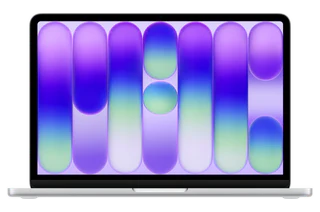 MacBook Neo 13" A18 Pro (2026)from € 99
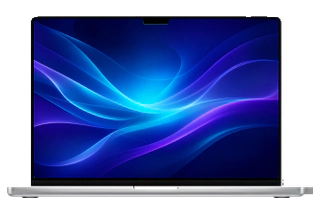 MacBook Pro 16" M5 Profrom € 99
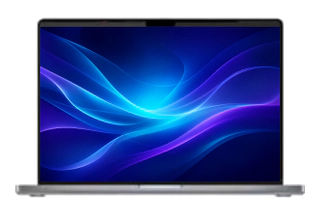 MacBook Pro 14" M5from € 99
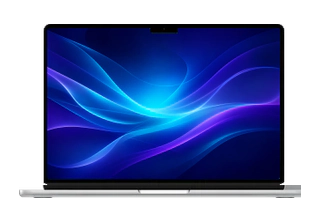 MacBook Air 13" M5from € 99
 MacBook Pro 16" M5 Maxfrom € 99
 MacBook Pro 14" M5 Profrom € 99
 MacBook Air 15" M5from € 99
 MacBook Pro 14" M5 Maxfrom € 99
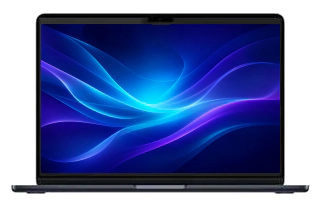 MacBook Air 15" M4 (2025)from € 99
 MacBook Air 13" M4 (2025)from € 99
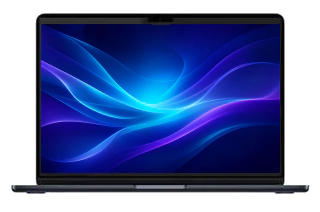 MacBook Air 15" M3 (2024)from € 99
 MacBook Air 13" M3 (2024)from € 99
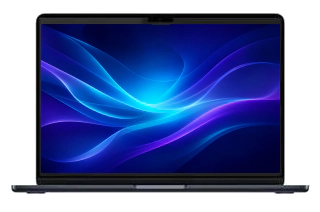 MacBook Air 15" M2 (2023)from € 99
 MacBook Air 13" M2 (2022)from € 99
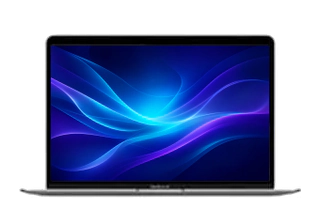 MacBook Air 13" M1 (2020)from € 99
 MacBook Air 13" (2020 Intel)from € 99
 MacBook Air 13" (2019)from € 99
 MacBook Air 13" (2018)from € 99
 MacBook Air 13" (2017)from € 99
 MacBook Pro 14" M4 Max (2024)from € 99
 MacBook Pro 14" M4 Pro (2024)from € 99
 MacBook Pro 14" M4 (2024)from € 99
 MacBook Pro 14" M3 Pro (2023)from € 99
 MacBook Pro 14" M3 (2023)from € 99
 MacBook Pro 14" M2 Pro (2023)from € 99
 MacBook Pro 16" M4 Max (2024)from € 99
 MacBook Pro 14" M1 Pro (2021)from € 99
 MacBook Pro 16" M4 Pro (2024)from € 99
 MacBook Pro 16" M3 Max (2023)from € 99
 MacBook Pro 16" M3 Pro (2023)from € 99
 MacBook Pro 16" M2 Max (2023)from € 99
 MacBook Pro 16" M2 Pro (2023)from € 99
 MacBook Pro 16" M1 Max (2021)from € 99
 MacBook Pro 13" M2 (2022)from € 99
 MacBook Pro 16" M1 Pro (2021)from € 99
 MacBook Pro 13" M1 (2020)from € 99
 MacBook Pro 16" (2019)from € 99
 MacBook Pro 13" (2020 Intel)from € 99
 MacBook Pro 13" (2019)from € 99
 MacBook Pro 13" (2018)from € 99
 MacBook Pro 13" (2017)from € 99
 MacBook Pro 15" (2019)from € 99
 MacBook Pro 15" (2018)from € 99
 MacBook Pro 15" (2017)from € 99
Sound familiar?
Signs of a clogged cooling system
- The fans run often and loudly, even during light tasks
- The underside or keyboard feels hot to the touch
- Your MacBook slows down or stutters as soon as you open more programs
- The device shuts down unexpectedly during heavy tasks
- You hear the fan, but hardly any warm air comes out
One of these signs on its own is not necessarily a problem. When several occur together, it usually points to dust in the cooling system, and a cleaning fixes that.
What does the cleaning involve?
Open and inspect
We open the device and check the condition of the fans, the cooling system and the logic board.
Remove the dust
Using small brushes and compressed air, we remove the dust from the deepest corners of the cooling system and the fans.
Replace the thermal paste
On request we replace the thermal paste between the processor and the cooling. We recommend it: fresh paste carries the heat away better, keeping your MacBook noticeably cooler and quieter.
Test and close up
We check that the fans spin freely again and the device can shed its heat, then close everything up neatly.
Why dust makes such a difference
Dust acts like a blanket over the cooling system. The heat can no longer escape, so the processor throttles itself to prevent overheating. Your MacBook is not slowing down because it is worn out, but because it is protecting itself.
After a thorough cleaning the heat can escape again and the device no longer needs to hold itself back. You notice the result right away: quieter, cooler and smoother.
When not to wait
Have the cooling checked quickly if
- Your MacBook suddenly shuts down during heavy tasks
- The fan makes a grinding or rattling noise
- The device has already overheated and now starts up with difficulty
Frequently asked questions
How often is an internal cleaning needed?
It depends on the environment: a MacBook that sits on a desk at home gathers dust more slowly than one that travels every day or works in a dusty room. If the device feels warm or you hear the fans more often than before, that is the clearest signal.
Will my data stay on the MacBook?
Yes. During a cleaning we do not touch the storage; your data and settings stay in place. A backup beforehand is always sensible.
Is replacing the thermal paste really necessary?
It is not mandatory, but the paste dries out over the years and then conducts heat less well. Since the device is open during the cleaning anyway, replacing it right away is the logical choice.
Our stores

FIXNOW Antwerpen
Wiegstraat 13, 2000 Antwerpen
Today: 10:00–18:00
+32 469 44 22 19

FIXNOW Wolvertem
Wilgenlaan 19 bus 2, 1861 Wolvertem
Today: Closed
+32 472 29 15 53